Convert a detail
Use a disposable project. Conversion is not yet approved for production work.
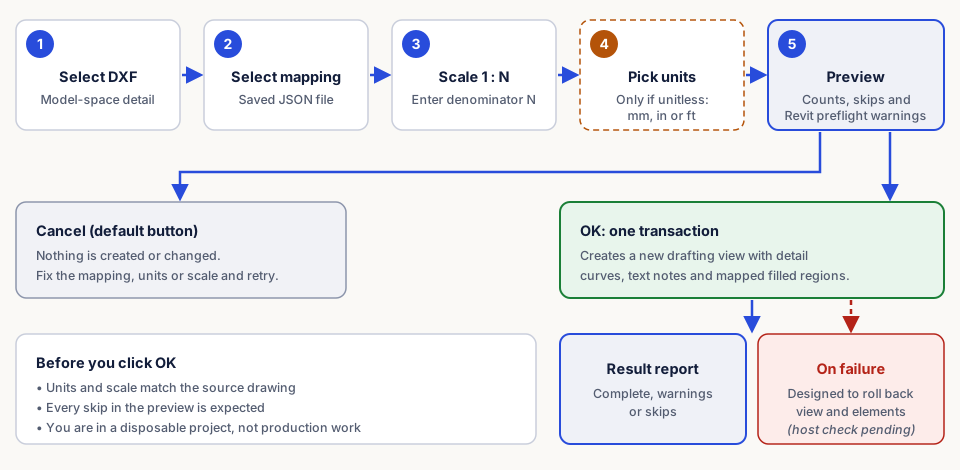
Steps
- Codex › Details › Convert CAD, then select the model-space DXF.
- Select its saved mapping JSON.
- Enter the drafting view scale denominator (1 : N). Geometry keeps its source size; scale affects presentation and the text paper-height check.
- Unitless drawing? Choose the actual source units: millimeters, inches or feet.
- Read the preview. Cancel if the mapping, units or planned result are not what you intend. If nothing is importable, no view is created.
On OK, a new drafting view and its native elements are created in one transaction. The code rolls back the view and elements on failure; in-Revit rollback verification is pending.
Read the result
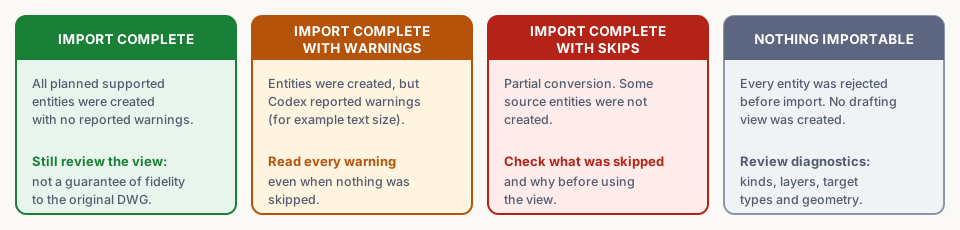
Source-entity counts differ from generated line segments or region edge counts. Proxy or unsupported entities hidden by the DXF library cannot be reconciled against original DWG counts.
Check the new view
- Units, line lengths, arc radii and view scale.
- Line styles and region types against the approved template.
- Elements are detail curves, TextNotes and FilledRegions, not a CAD import.
- Text anchoring, font metrics, wrapping and extents.
The mapped text type is used unchanged. CAD paper height = model-space text height ÷ view scale. A mismatch with the type's paper size is a warning, not a skip or resize. Revit anchors text bottom-left; exact CAD baseline equivalence is not established.
Host-free tests do not show that appearance or rollback work in Revit.